
TRANSLATOR PRO / DOCUMENTATION
Translator Pro documentation for Unity localization workflows.
This page turns the Translator Pro documentation package into an indexable web reference. It covers setup, language configuration, text localization, quality control, voice dubbing, subtitle settings, image localization, manual entries, and store tooling.
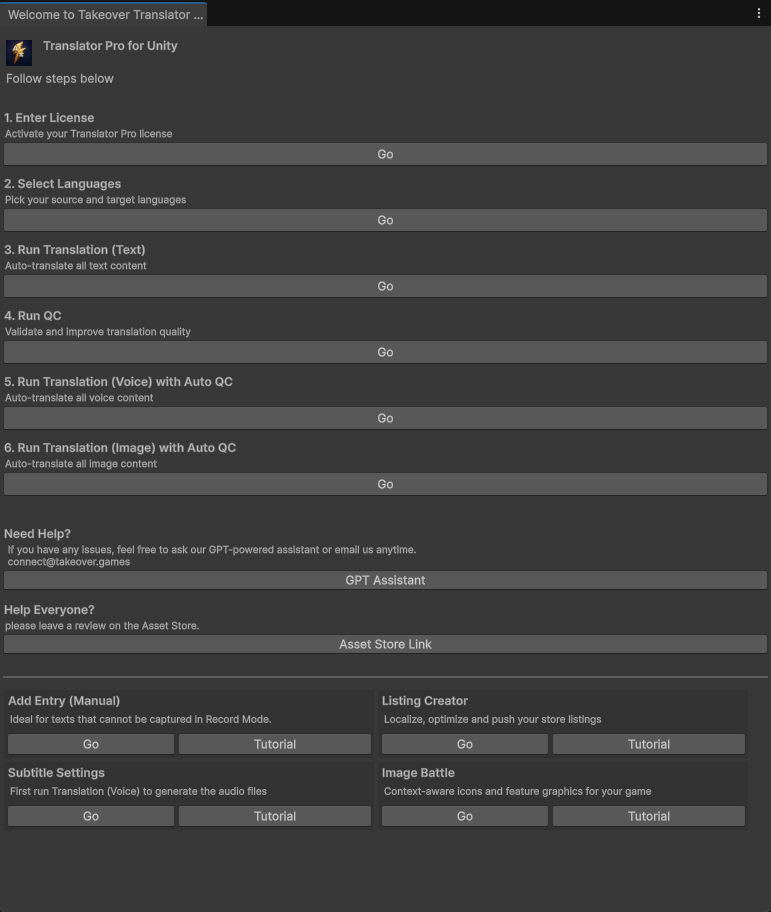
- Activate your license and optional provider keys.
- Select source and target languages with recommended locale groups.
- Run text, voice, and image localization from dedicated workflow windows.
- Use QC, subtitle settings, manual entries, and listing tools when needed.
What is inside the documentation
Core Translator Pro tools
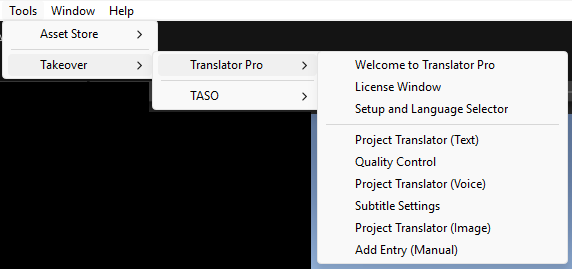
The menu structure exposes setup, language selection, text translation, quality control, voice translation, subtitle settings, image translation, and manual text entry workflows for game teams working inside Unity.
TASO and listing utilities
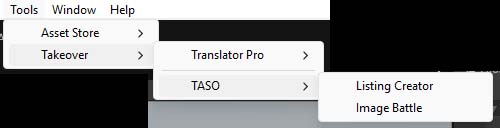
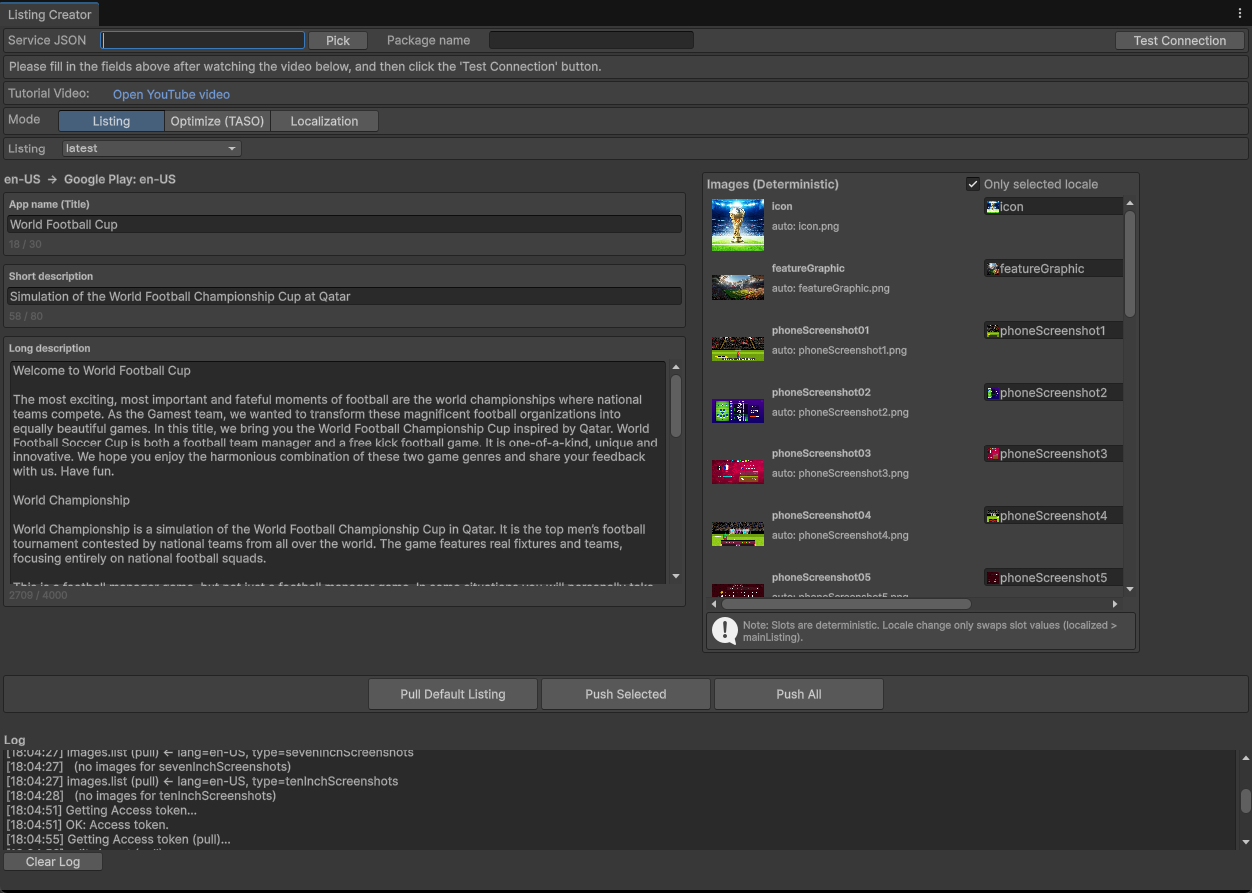
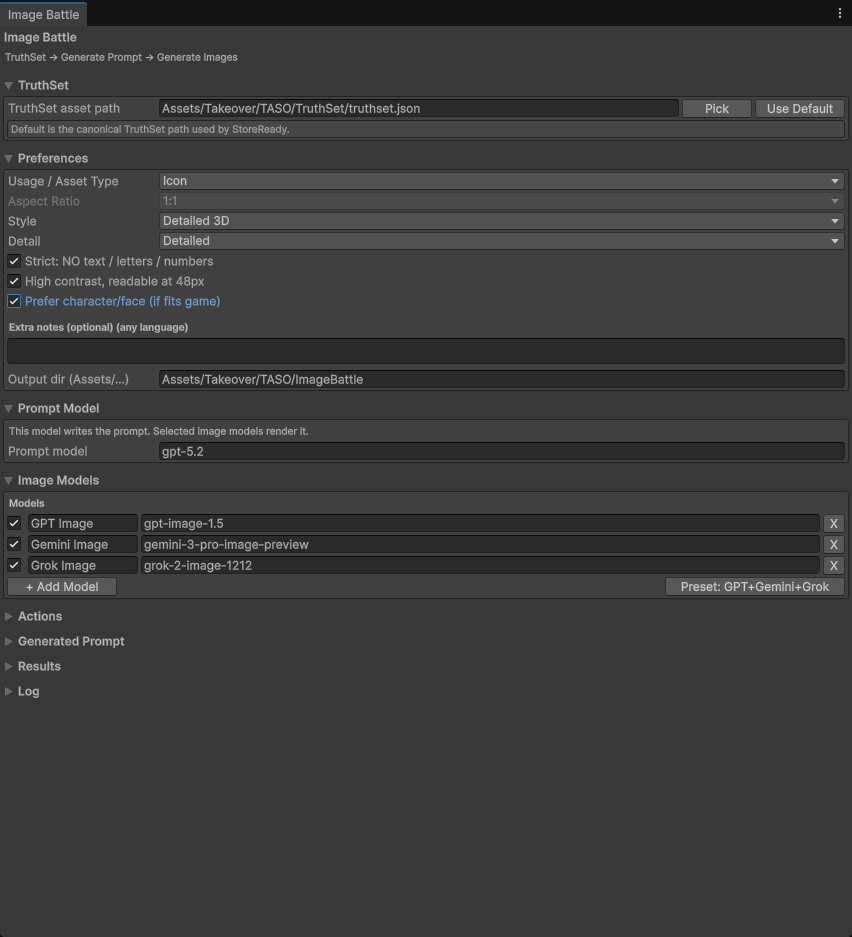
The package also includes Listing Creator and Image Battle workflows for store localization, listing optimization, deterministic asset swaps, and AI-assisted image generation experiments.
Production-oriented operators
The UI is designed around repeatable production tasks: selecting scenes and prefabs, running localized outputs, tuning subtitle behavior, and adding entries that could not be captured automatically.
Getting started: license, providers, and languages
License and API window
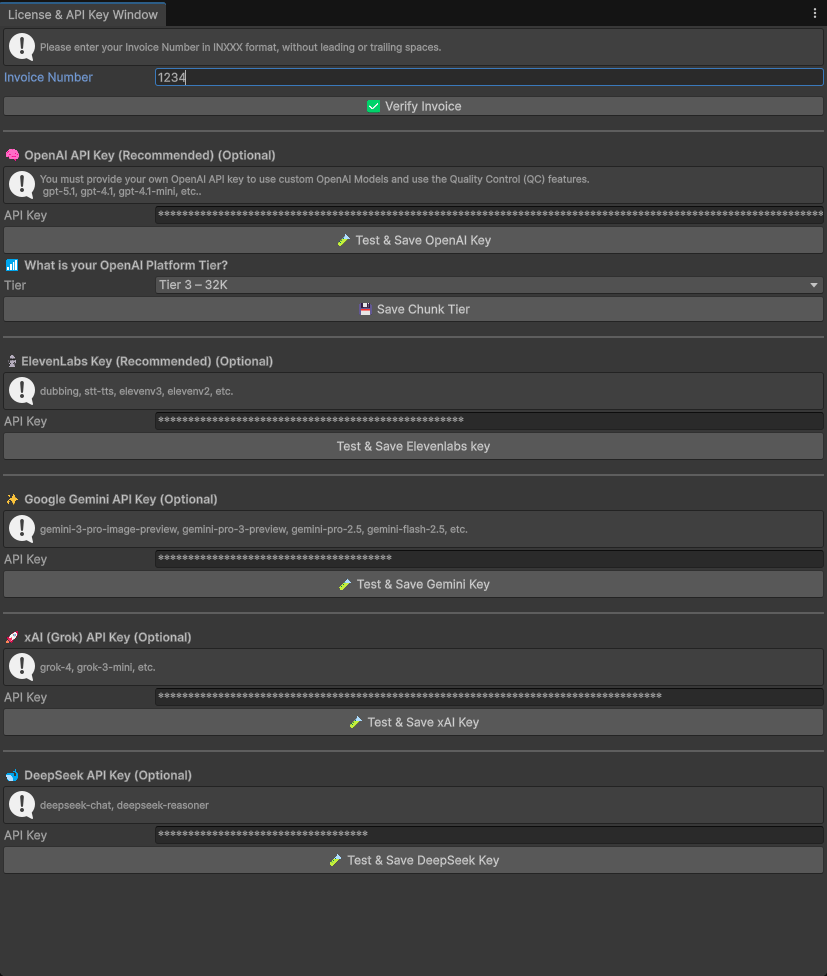
The setup flow begins with invoice verification, then lets teams store optional provider keys for OpenAI, ElevenLabs, Gemini, xAI, and DeepSeek. This makes Translator Pro flexible about which model stack you want to use in production.
- Verify the Translator Pro invoice number.
- Save provider keys only for the services you plan to use.
- Configure platform tier settings when required by the provider workflow.
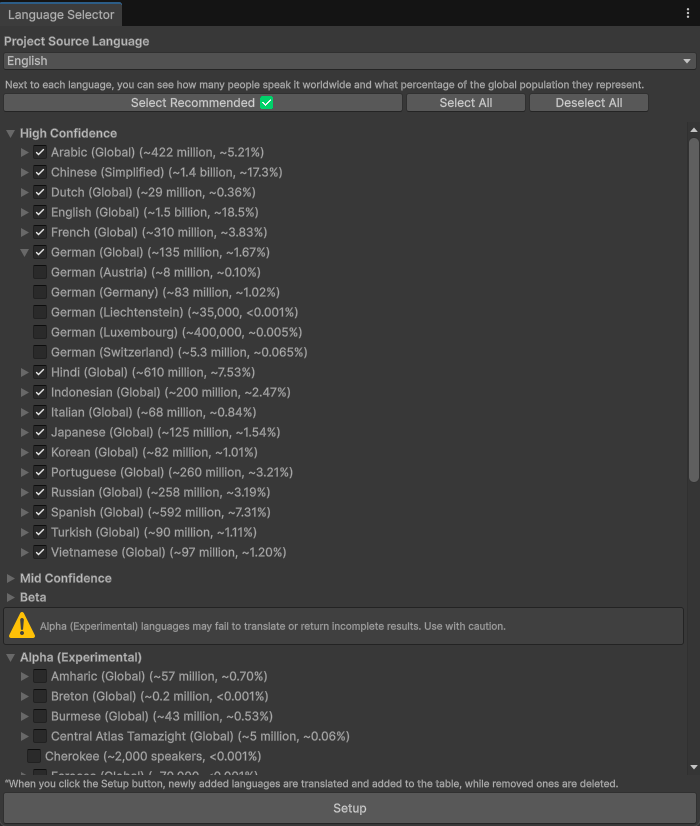
Language selection workflow
The language selector groups locales into confidence tiers and helps teams prepare wider coverage beyond a single language list. This is useful when release planning needs both major markets and long-tail locale coverage.
- Pick the project source language first.
- Use recommended selections for broad global reach.
- Review locale confidence tiers before setup is finalized.
Text localization and quality control
Run the project translator
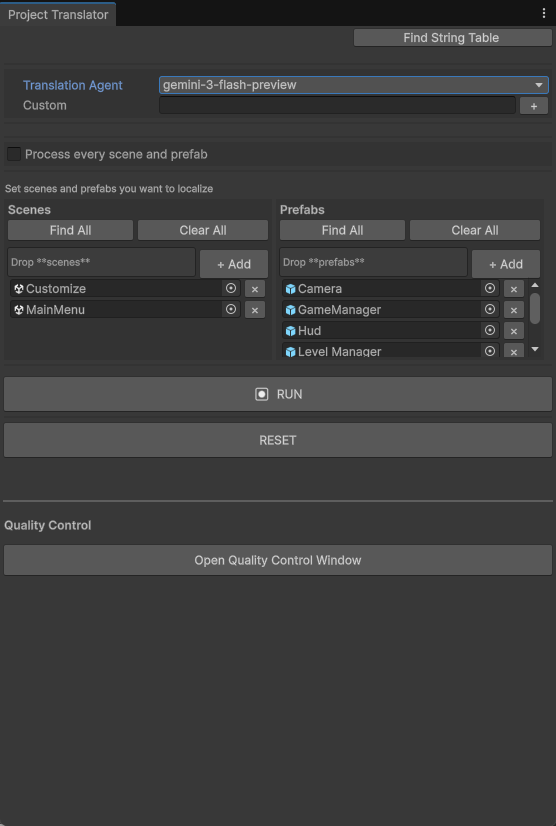
The text translator window is built around Unity scenes and prefabs. Teams choose the translation agent, decide whether every scene and prefab should be processed, then run the pass against the selected content.
Open quality control
Quality control is positioned as a dedicated review stage rather than a hidden background step. The text translator window links directly into QC so teams can validate output quality before release preparation continues.
Patch missing content manually
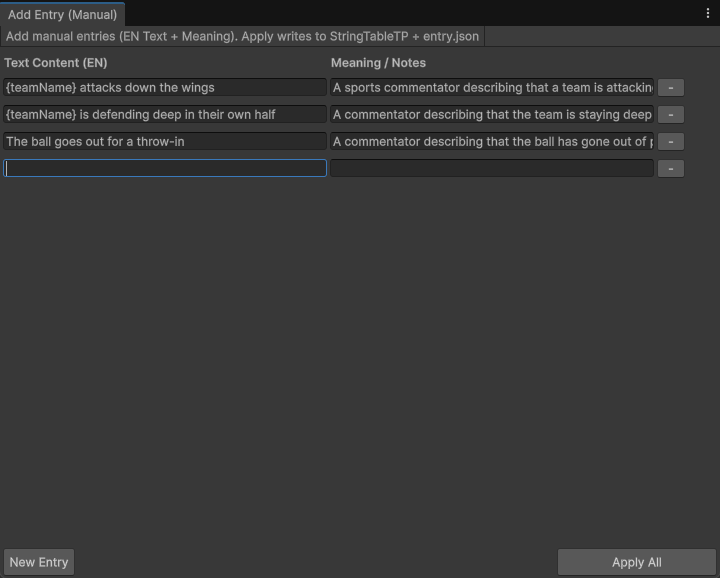
If some strings were not captured automatically, the manual entry workflow lets teams add English source text and notes, then write them back into the localization table structure.
Voice, dubbing, video, and subtitle settings
Voice localization profiles
The voice workflow covers scenes, prefabs, speaker profiles, and TTS provider selection. The screenshots show support for ElevenLabs and OpenAI-based configurations, including clone or fallback paths when some locales need a different route.
- Assign voice profiles to characters.
- Use pass-based logic for supported locales and fallback languages.
- Run dubbing inside a Unity-centered production workflow.
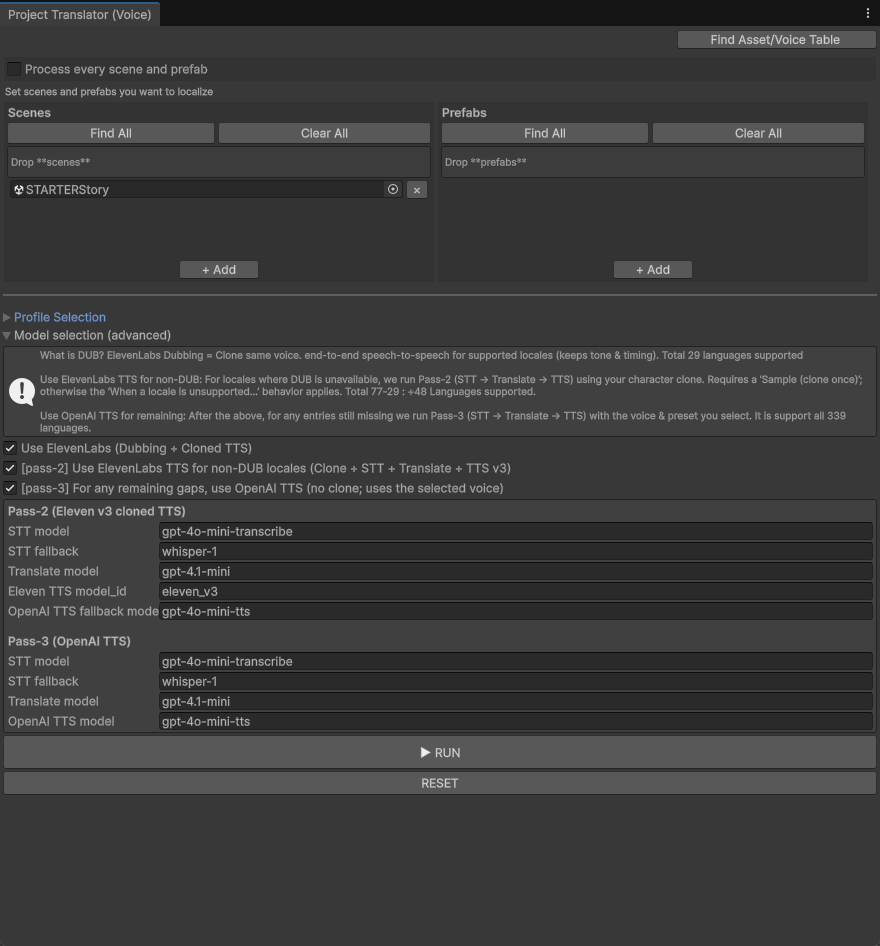
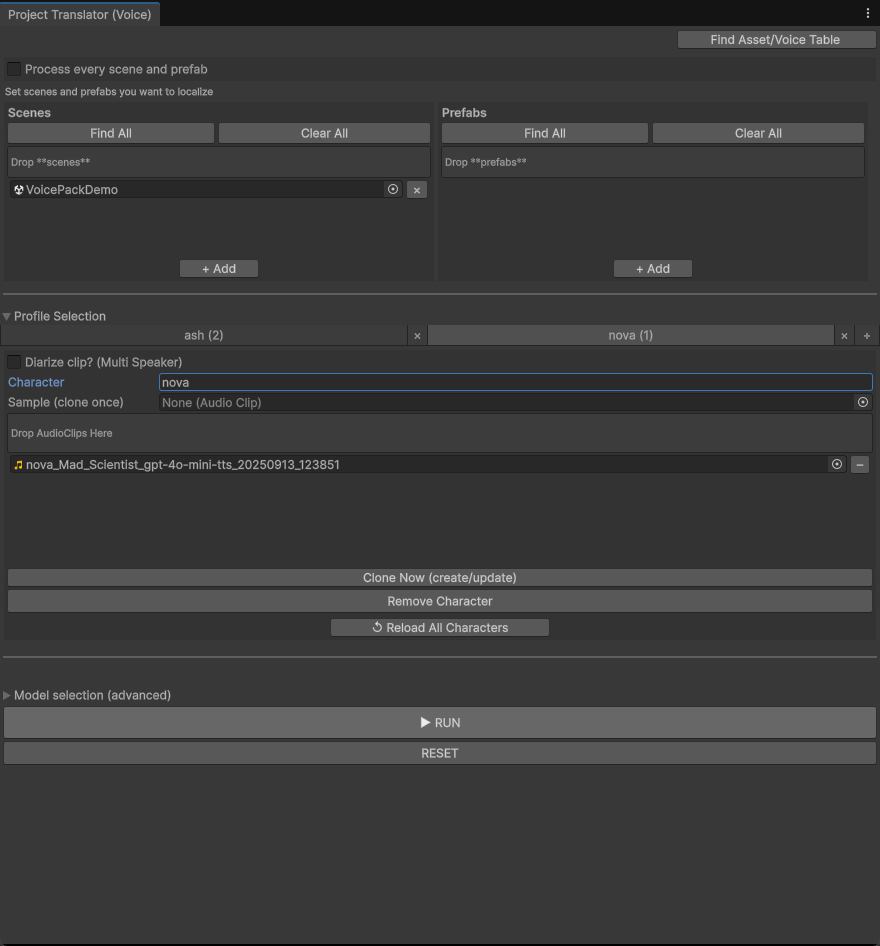
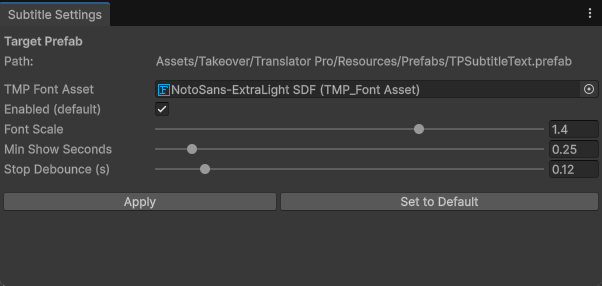
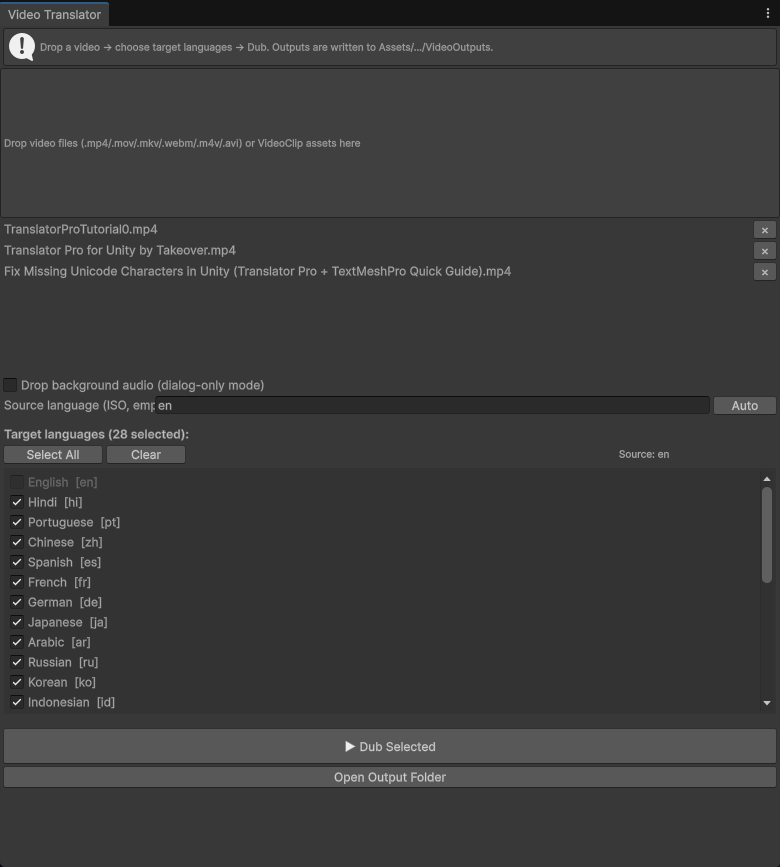
Image localization, listings, and image generation workflows
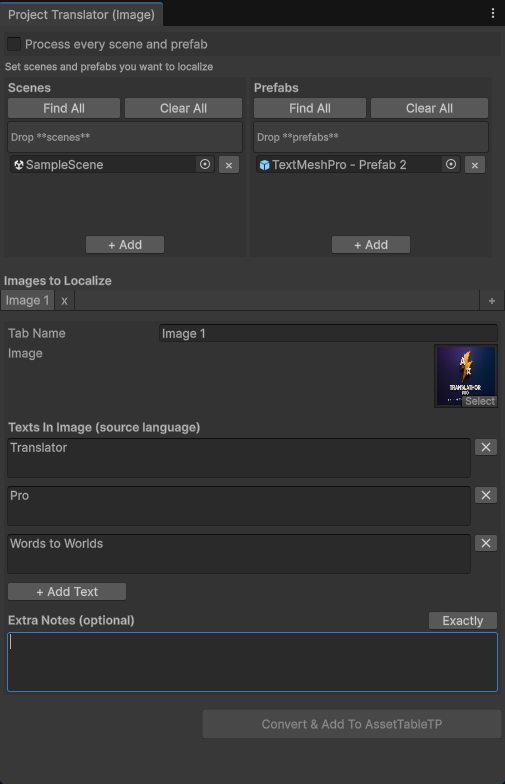
Image and store-facing workflows
The documentation package expands beyond string tables. It includes image localization for text inside art, a listing creator for localized store metadata and assets, and an image generation workflow for experiments around icons and promotional artwork.
- Capture text inside UI art or marketing visuals.
- Push localized store listings and deterministic image slots.
- Generate image prompts and compare multiple image models for store assets.
What this means operationally
Translator Pro is documented as more than a string translator. The screenshots show a broader localization and release pipeline that brings together in-game text, dubbed voice, subtitle behavior, visual text replacement, and store content operations in a single tooling family.
READY TO GO DEEPER
Need help applying Translator Pro to your own game pipeline?
If you want a walkthrough for your localization stack, store operations, or multilingual release process, we can map the documentation flow onto your real production setup.